
Getting Started
Once Flashot is installed and running (look for the lightning bolt icon in your system tray / menu bar), you're ready to capture.
Default Shortcuts
| Action | macOS | Windows / Linux |
|---|---|---|
| Region capture | Cmd + Shift + A | Ctrl + Shift + A |
| Full screen quick shot | Opt + F | Win + F |
| Active window quick shot | Opt + W | Win + W |
Your First Capture
- Press Cmd + Shift + A (macOS) or Ctrl + Shift + A (Windows/Linux).
- The screen freezes and the overlay appears.
- Click and drag to select a region, or click once on a window to auto-select its bounds.
- Release the mouse to confirm the selection.
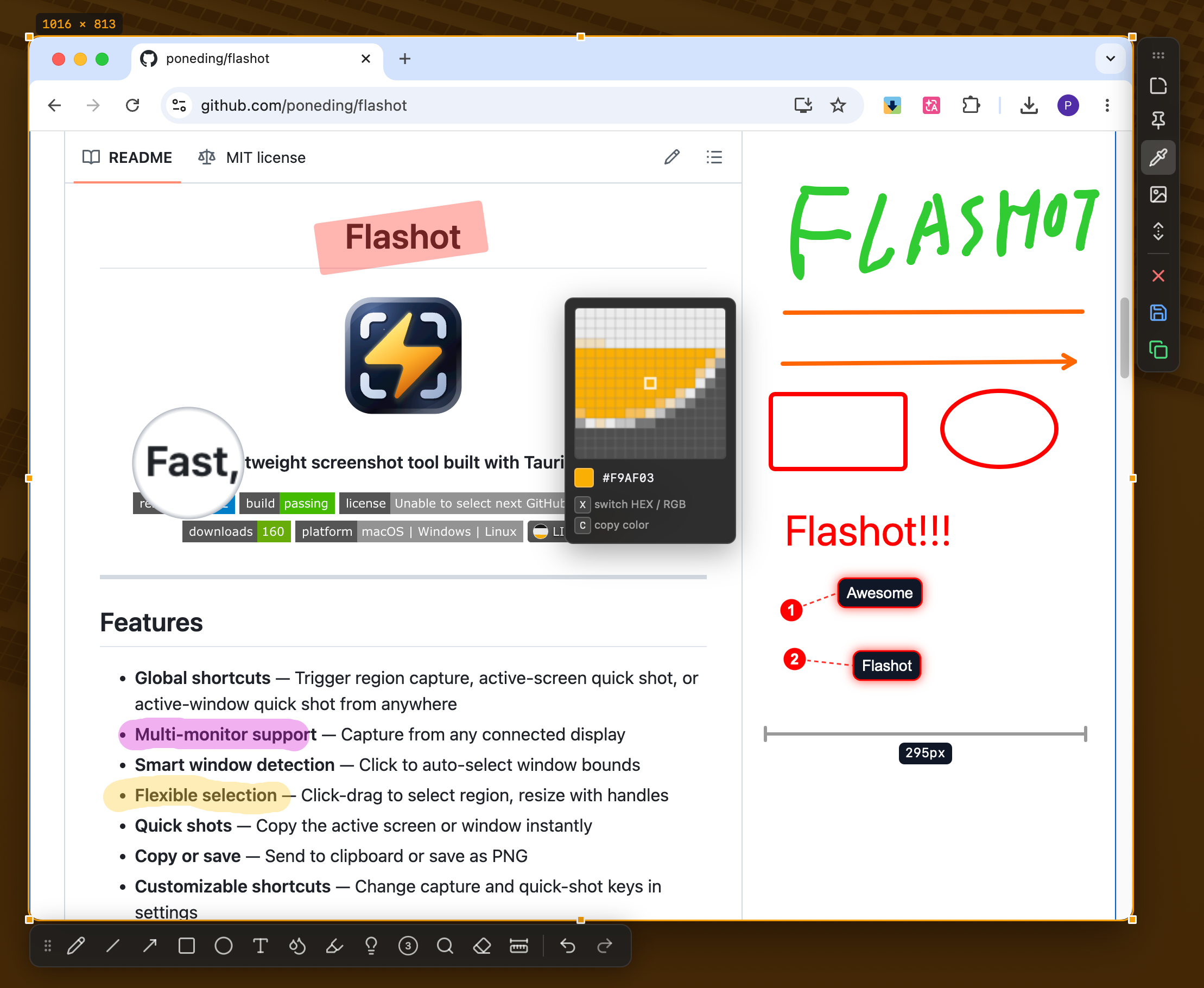
After Selection
Once you've committed a selection, a toolbar appears with options:
- Copy — Copy the screenshot to your clipboard (Cmd + C)
- Save — Save as a PNG file (Cmd + S)
- Pin — Pin as a floating window
- Scroll — Start a scrolling capture session
- Close — Cancel (Esc)
You can also resize the selection by dragging its handles, or move it by dragging from inside the selected area.
Quick Shots
Quick shots bypass the overlay and copy the result immediately:
- Full screen — Captures your entire primary display
- Active window — Captures the frontmost window
Annotating
When a selection is committed, an annotation toolbar appears above the overlay. Use it to draw arrows, rectangles, text, blur sensitive information, and more. Switch between tools freely — each tool remembers its own style.
Cancelling
Press Esc at any time during a capture to cancel and return to the desktop.